
14 min read
An environment where you vibe-code Android apps and widgets in a few minutes.
When I’m missing a widget or an app on my phone, I vibe-code it on the phone itself in a few minutes. Vibe coding means an AI writes the code from a description in plain language. I do it in Omalauncher, an Android home screen, and it all started with Omarchy.
Omarchy is a Linux distribution that David Heinemeier Hansson (DHH), the creator of Ruby on Rails and partner and CTO at 37signals, released in June 2025. It is built on Arch Linux and Hyprland, a window manager that tiles windows side by side. Its website now calls it “Beautiful, fun & agentic Linux”. DHH’s reasoning is simple: if you can vibe-code any app that comes to mind, you should be able to vibe-code your operating system too.
Since version 4.0 the top bar, panels, menu and system services are all plugins. If none of the thousands in the catalog does what you need, Omarchy tells you to put an AI agent on the job. You pick the agent on first boot: Claude Code, Codex, Gemini, Grok, GitHub Copilot or one of several others. When an app crashes, Omarchy offers to let the agent find out why.
According to the project’s website, Omarchy had more than 1.28 million downloads in its first year, and it has almost 45,000 stars on GitHub. That success inspired me to set up something similar on my phone. It turned out someone had already built it.
What Omalauncher is
Omalauncher is an Android home screen in the Omarchy style. Simon Schubert from Berlin wrote it and released the first version on October 1, 2026. Two weeks later the project has more than 300 stars on GitHub. There is no separate website; the GitHub repo is the project’s home. You can get it for free from Google Play or as an APK from GitHub. You don’t need an account, it has no ads or tracking, and the code is MIT licensed. It has no official ties to Omarchy or Arch Linux.
The most interesting part is that, if you ask it to, it installs a complete Arch Linux ARM on your phone. It’s about 830 MB and runs under proot, a tool that runs Linux inside an ordinary app, so you don’t need to root the phone. Proot is not a sandbox, though: Linux programs and the agent can see the launcher’s data and everything the launcher can access on Android.
You install software with pacman, Arch Linux’s package manager, just like on a computer. You also get the AUR (Arch User Repository), a community collection of recipes that build a program from source code. Users contribute the recipes themselves and nobody officially reviews them, so you use them at your own risk. Not every recipe expects a phone’s ARM processor, either. Omalauncher searches the AUR and builds the package for you.
The launcher is also a Wayland compositor, which means it displays the windows of graphical Linux apps. Each one opens as its own Android task with its own card in Recents.
Widgets work differently. They don’t run as separate Linux apps; each one is a short file in OWL, the launcher’s simple language for describing how a widget looks and behaves, and the launcher draws it itself. A widget can still ask Linux for anything: it can run a bash command, a Python script or an AI agent and show the result on the home screen. Tap a widget and it can open full screen. Version 0.8.0 from October 17 also added standalone OWL apps that show up in the app list.
On top of that you get a terminal, a file manager, a text editor and optional GPU acceleration on Mali and Adreno graphics chips. Without Linux you still get themes, wallpapers, Android apps and the widgets that don’t need to run commands. The launcher needs a 64-bit phone with an ARM processor and Android 10 or newer.
There are other AI launchers. Microsoft Launcher has had Copilot since 2024, Nothing has been generating widgets from prompts since September 2025, and Google announced Gemini-made widgets in May 2026. But I don’t know of any other launcher that brings a full Linux and a coding agent of your choice to the phone.
One field for apps and AI
The main control is one field at the bottom of the screen that reads “open an app or ask claude…”. A short name opens an app; a full sentence goes to the AI agent, which starts in a terminal. Hold the microphone icon and you can dictate. Whatever speech recognition service you have set on Android turns your voice into text, and only the text reaches Linux.
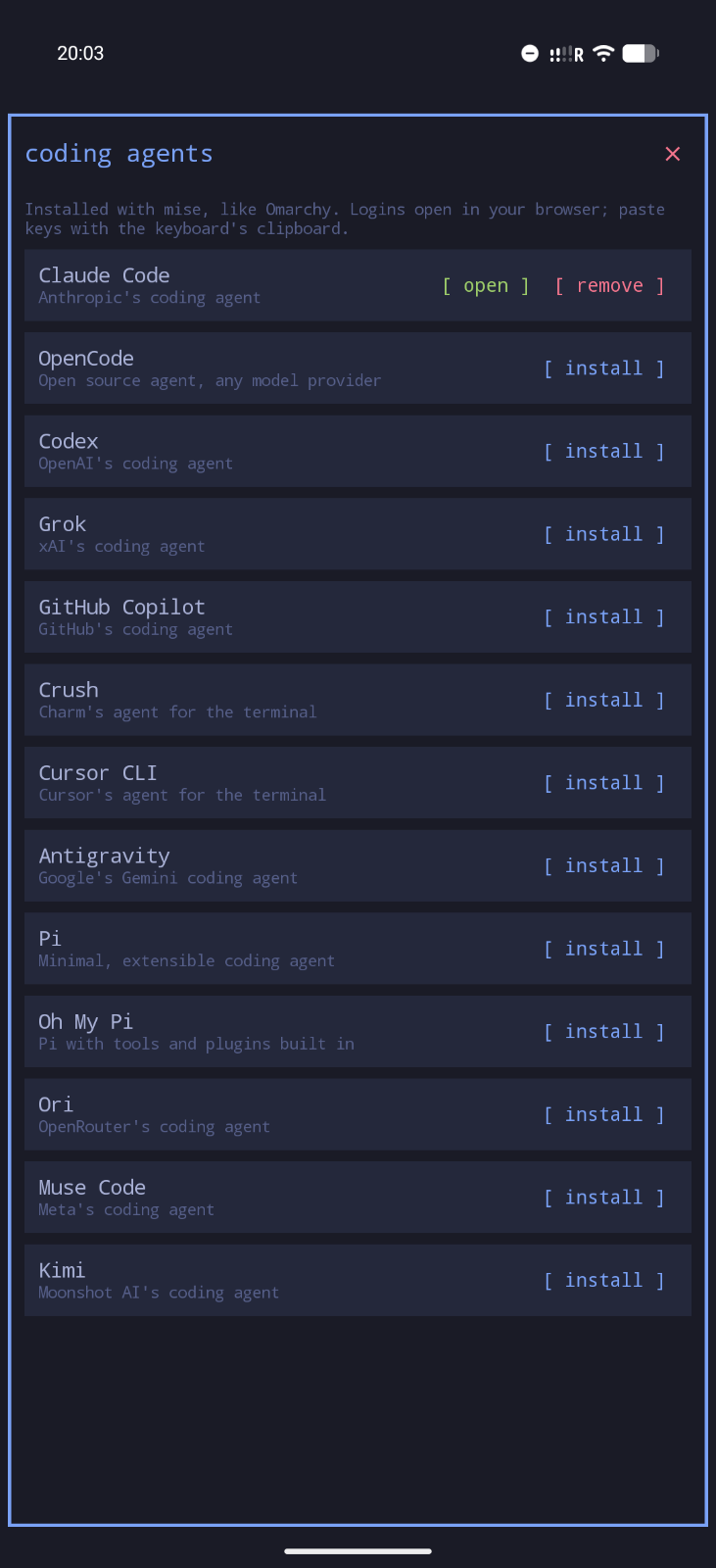
You switch agents by tapping the agent’s name at the left of the field. Settings lists 13 of them under coding agents, and each installs with one tap through mise, a tool for installing developer tools that Omarchy uses too. The choice is Claude Code, OpenCode, Codex, Grok, GitHub Copilot, Crush, Cursor CLI, Google’s Antigravity, Pi, Oh My Pi, OpenRouter’s Ori, Meta’s Muse Code and Moonshot AI’s Kimi. You sign in with your own account or API key, just as on a computer. The login opens in your browser and you paste keys from the clipboard. I use Claude Code.
Offline dictation in Slovak
I wanted to dictate in Slovak without sending my voice to the cloud. What works for me is the open-source app Offline Speech To Text with NVIDIA’s Canary 1B v2 model. It runs speech recognition entirely on the phone. The app’s default model, Parakeet, detects the language by itself and sometimes mistook my Slovak for Russian, so it wrote in Cyrillic. Canary doesn’t guess the language and sticks to the one you set. I also tried Whisper large-v3-turbo, but it was far too slow on the phone.
- Install Offline Speech To Text and allow it to use the microphone. I got it from Zapstore (an app store built on Nostr); it’s also on GitHub.
- In the app, open Manage speech models and download the Canary 1B v2 model right there (file canary-1b-v2-Q4_K_M.gguf, 735 MB). Make it the active model and set Language to Slovak (sk-SK).
- Make the app Android’s default voice input. If your system doesn’t offer that in Settings, as on GrapheneOS, you can set it over adb:
adb shell settings put secure voice_recognition_service app.offlinespeechtotext/dev.notune.transcribe.VoiceRecognitionService
A coffee app in a few minutes
I like the European Coffee Trip app, but it’s no help to me in Latin America, so I decided to vibe-code something similar right on the phone. I described in one line in the field what it should do, and a few minutes later it was done. Further prompts only fine-tuned it.
Technically it’s a widget that opens full screen like an app when you tap it. On the home screen it’s a small tile with the city and the line “3 picks by Claude”. I type a city or press my location. The widget pulls the cafés within roughly 3 km from OpenStreetMap and highlights the ones whose OpenStreetMap entries mention words like roastery, V60, Chemex, filter or brew bar. Claude then goes through reviews in search results, from TripAdvisor for example, and picks the best three cafés, each with a short explanation, a quote from a review and a confidence level. So the city does go to Anthropic. Tapping a café opens it in Google Maps with photos and reviews.
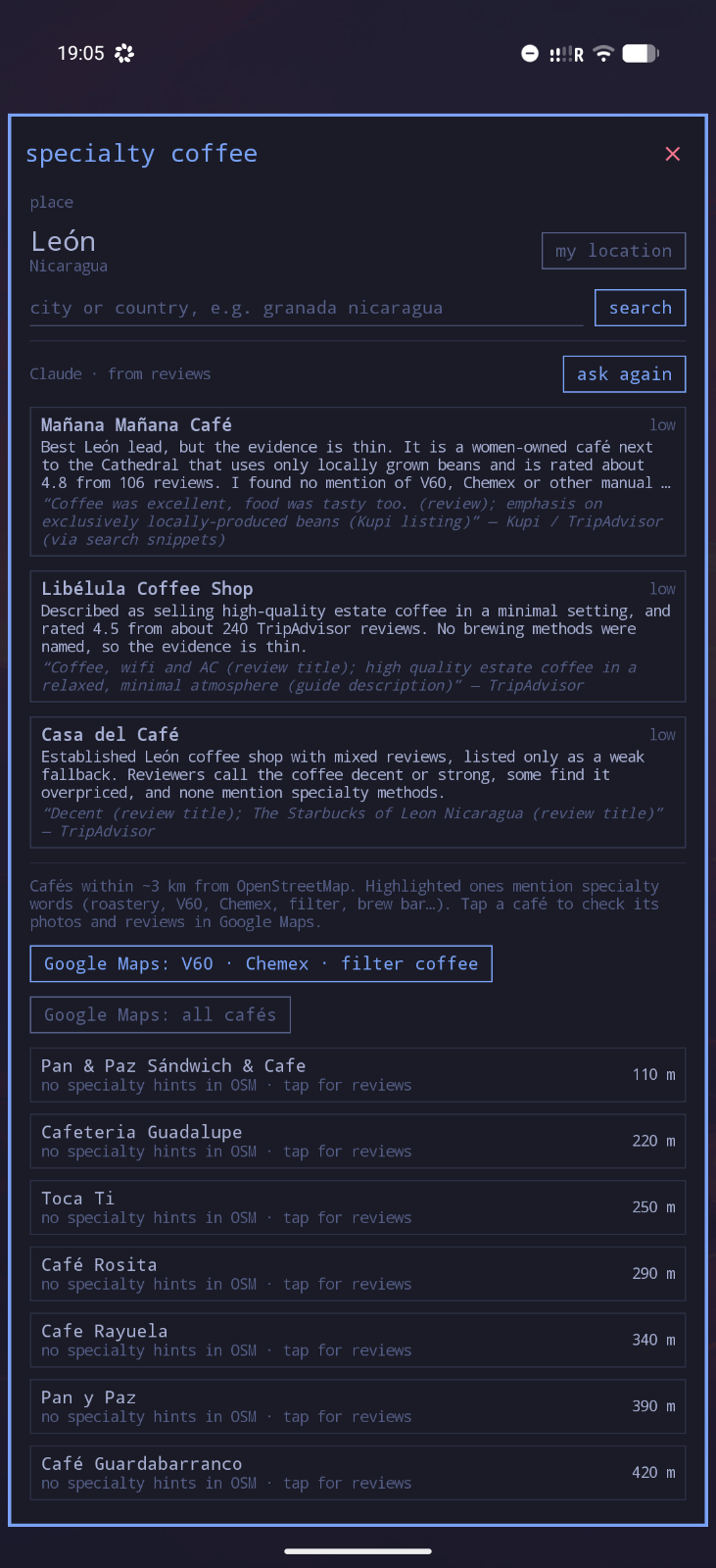
I like that Claude doesn’t oversell anything. In León, Nicaragua it marked all three picks as low confidence, because the reviews didn’t mention V60 or Chemex at all. The ask again button gets me a fresh selection.
How widgets get made
You don’t have to go through the field. Long-press an empty spot on the home screen and a menu opens. In the create with claude code row (the name follows whichever agent you picked) you choose whether to vibe-code a widget or an app, and the agent asks you what to build. browse store lets you pick a ready-made widget or app from the omarchy-widgets repo instead, where I found 162 widgets and 7 apps. Widgets and apps only get into the store after a review. The same menu also switches themes.
A widget is a plain text file in ~/.config/omalauncher/widgets, and after you save it, it shows up on the home screen within a second. When a widget reports an error, fix with agent hands it to your agent. A finished widget can go to the store through publish, and the agent opens the pull request for you. You can also share it as a link or a QR code. The whole widget is then encoded in the link, and before adding it the launcher lists every command the widget runs and flags the risky ones. Nobody has reviewed a widget shared this way, though.
It doesn’t stop at widgets. The store also has APK Maker, which lets Claude Code, Codex or OpenCode build a real Android app (APK) from your description on the phone and prepare it for a Google Play release.
A home screen built your way
The home screen is a grid of six columns and about twelve rows. Long-press a widget to move or resize it. There are 22 themes, all from Omarchy and with their wallpapers, and the theme you pick applies to the launcher, Linux apps and widgets alike.
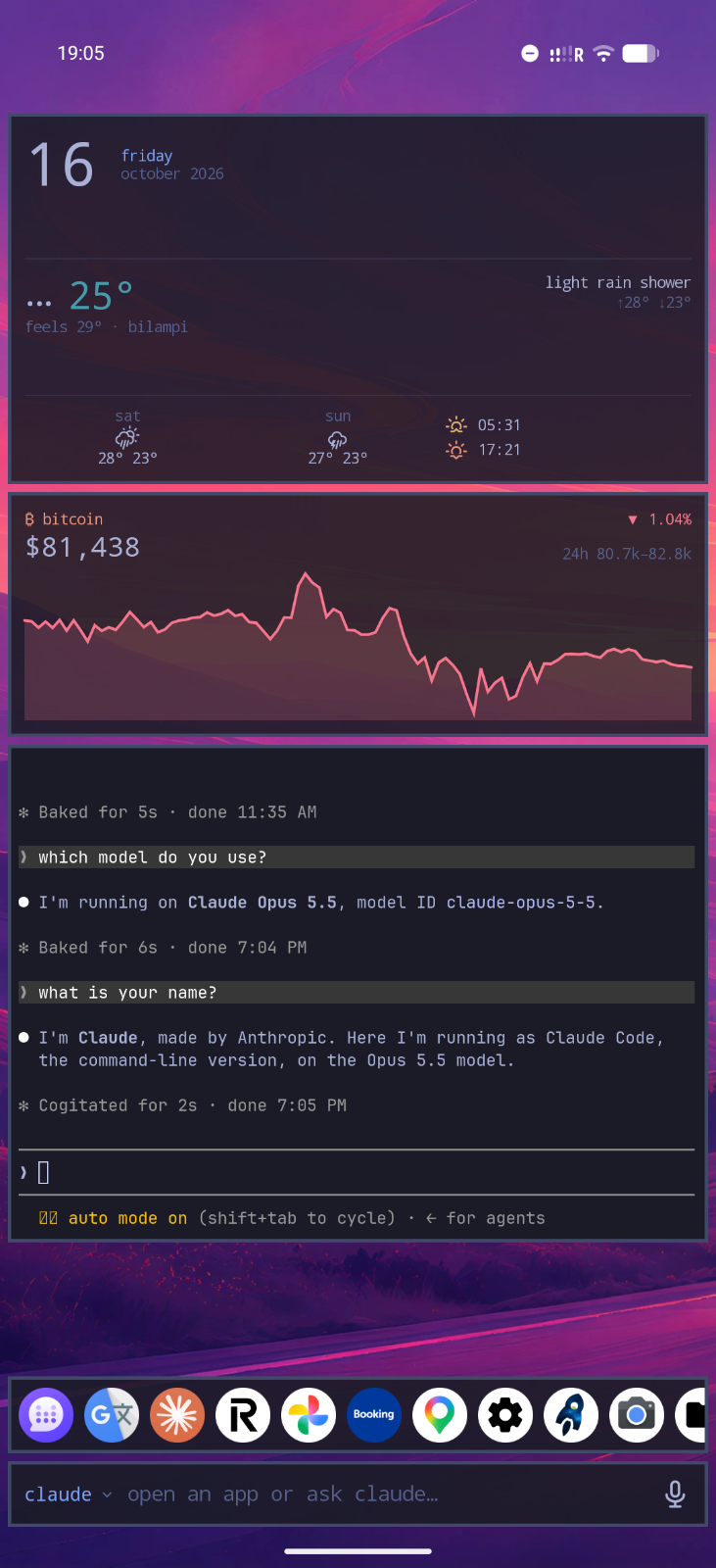
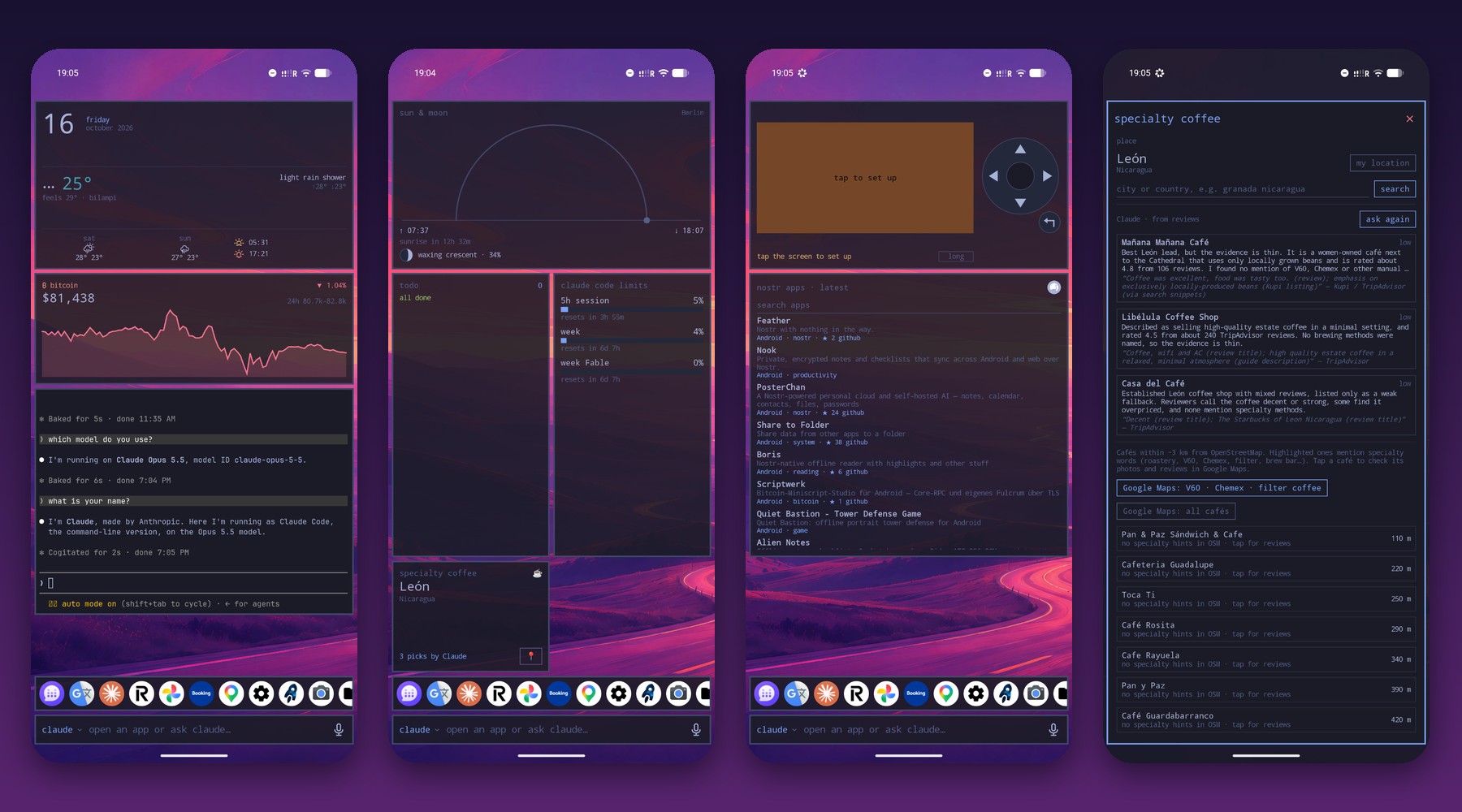
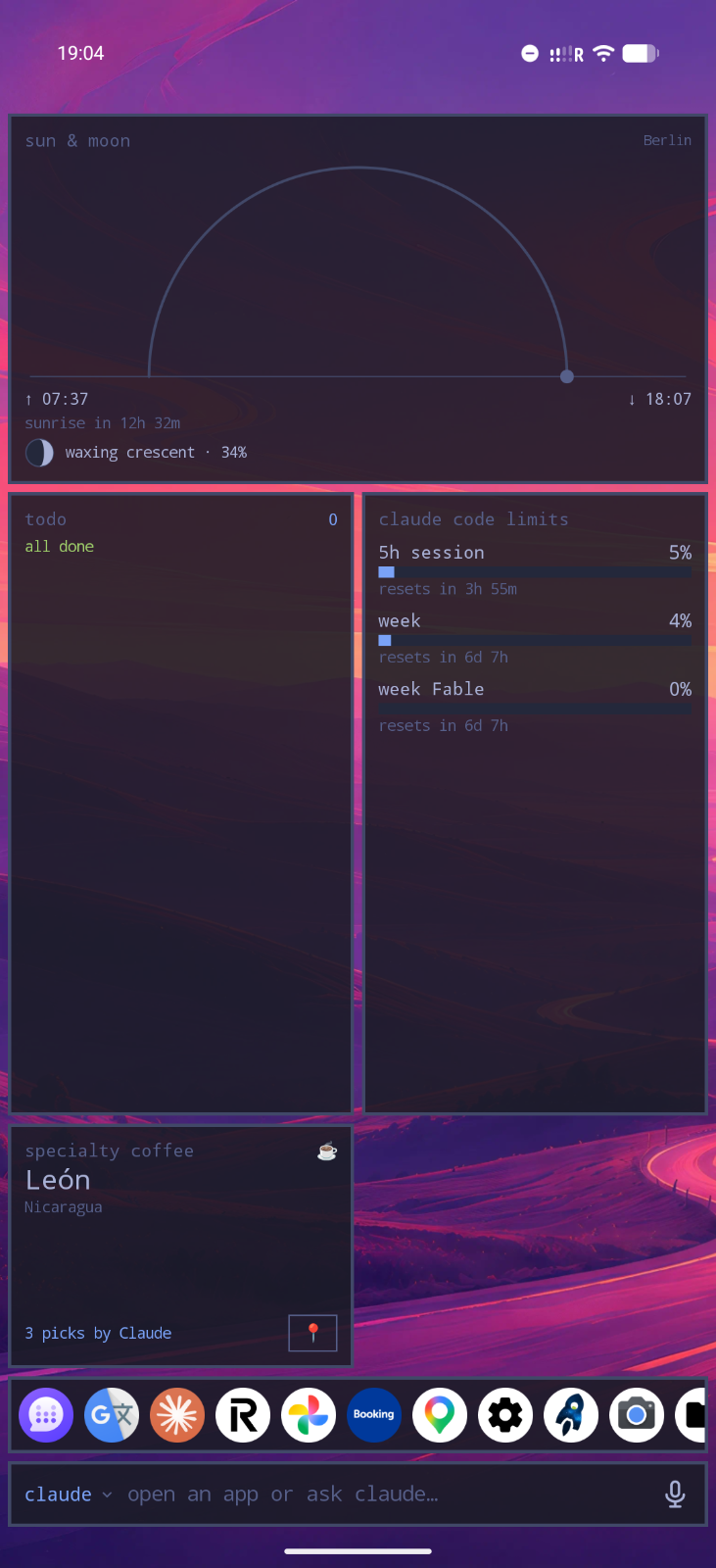
My first page has the date and weather, the bitcoin price with a 24-hour chart, and a terminal running Claude Code. The second has sunrise and sunset with the moon phase, a to-do list from a Markdown file, my Claude Code usage (the five-hour window and the weekly limit) and the coffee tile.
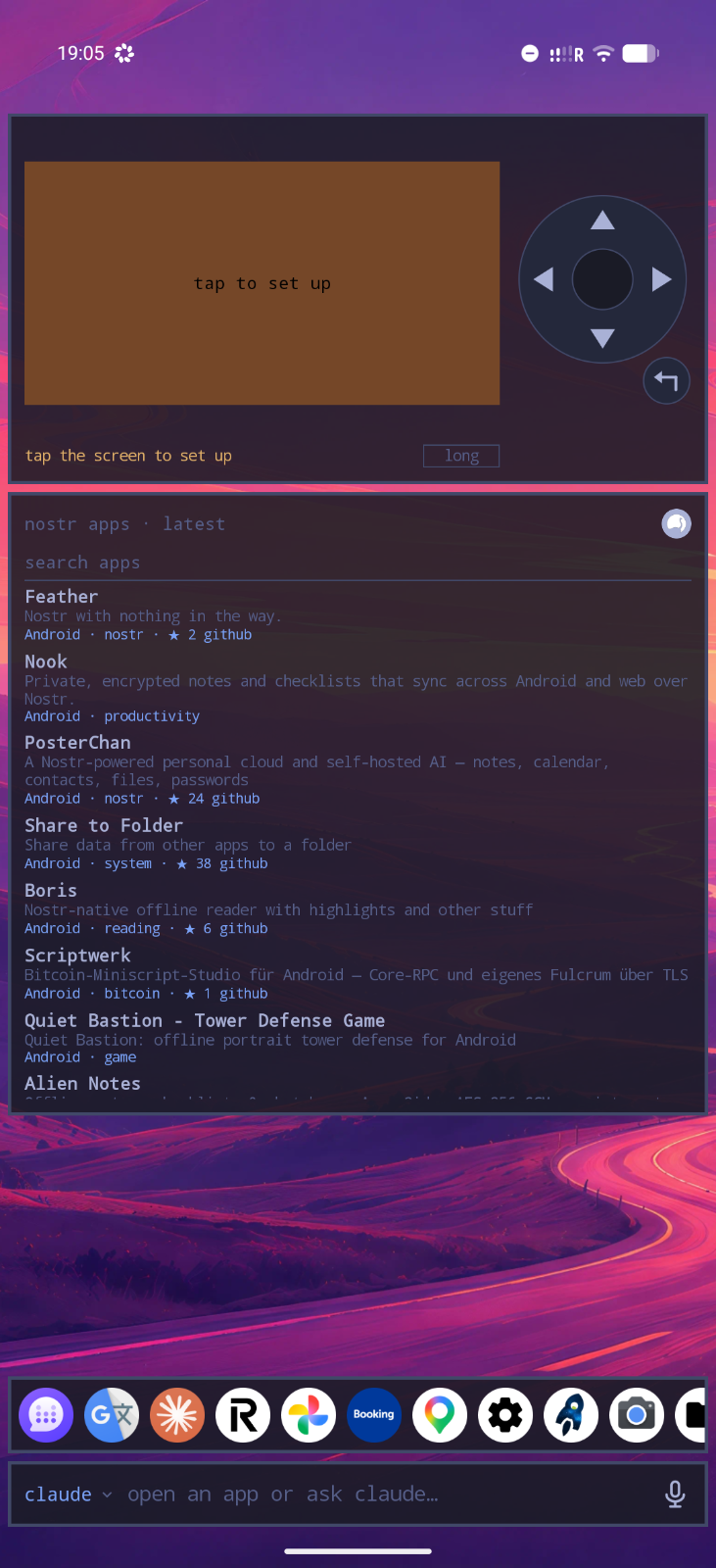
The third page is more for fun. At the top is a widget for the Flipper Zero, a pocket multi-tool for hackers, which shows what’s on the Flipper’s display and gives you its buttons. The Flipper has to be plugged into a computer over USB with a small bridge running, and the widget reaches that bridge over SSH. I haven’t set mine up yet. Below it is a list of the newest apps published on Nostr, a decentralized protocol that is used for distributing apps as well as messages.
The strip at the bottom holds the apps I launch most often, pinned, and under it is the field for apps and prompts.
Widgets from other apps don’t work
What I miss most is that Omalauncher can’t show regular Android widgets from other apps. The pull request that would add this hasn’t been merged yet, so the Proton Calendar widget was not an option.
Instead I installed the agenda widget from the store and pointed it at a link to my Proton Calendar in ICS format, the standard calendar format most apps can read. The widget shows the next 14 days, each calendar in its own color, and refreshes every 10 minutes. It’s a subscription rather than a one-time import, so new events from Proton show up on their own. Proton’s own guide says, though, that changes can take up to eight hours to reach people with the link.
How to set it up
A Full view link works like a password. It contains the decryption key, anyone who has it sees all your events, and Proton uses it to decrypt the calendar when the link is fetched, so you give up end-to-end encryption for that calendar. If you don’t want to share everything, create a separate calendar just for the events you want on your home screen. If the link leaks, delete it in the calendar settings under Actions → Delete link and create a new one.
Here’s how to create the share link (Proton’s guide). It only works in the web app and requires a paid plan.
- On calendar.proton.me open Settings → All settings → Calendars and pick the calendar.
- Under Share with anyone click Create link.
- Choose Full view. With Limited view you only see when you’re busy, without event titles.
- Click Copy link and move the link to your phone safely, for example through a password manager rather than ordinary chat or email.
Then in Omalauncher:
- Long-press an empty spot on the home screen and choose browse store. Find the agenda widget and add it.
- The widget needs Linux and a few packages (python, python-icalendar, python-recurring-ical-events and nano). If they’re missing, it offers to install them.
- Tap the widget, then edit calendars. The nano editor opens
~/.config/gcal-agenda/urls. - Paste the Proton link, one calendar per line. To give a calendar a name, write it as
proton = https://calendar.proton.me/.... - Save with Ctrl+O and Enter, and close nano with Ctrl+X. You’ll find Ctrl in the key row above the keyboard. The widget refreshes by itself, or you can tap refresh.
If you’d rather not type in nano, you can leave it to Claude. The link then ends up with Anthropic too, so for a sensitive calendar paste it yourself.
For advanced users
Other models via Venice.ai and end-to-end encryption
Omalauncher itself has no setting for the model or the API, and the list of agents is fixed. You choose the model in the agent’s own configuration, exactly as on a computer. If you don’t want your prompts going to Anthropic or OpenAI, there’s Venice.ai, a privacy-focused provider of AI models. The easiest are OpenCode and Crush, which both have Venice as a built-in provider and only need an API key. Oh My Pi has it built in too. Pi, Codex and Kimi can use it through their own configuration, because Venice’s API is OpenAI compatible. Claude Code doesn’t work with Venice directly; it needs claude-code-router in between.
End-to-end encryption (E2EE) is more complicated. Venice offers four privacy levels. In anonymous mode the model provider sees the prompt but not who sent it. Private mode stores nothing. TEE (Trusted Execution Environment) means the model runs in a hardware-isolated enclave whose authenticity the client can verify. With E2EE the client has to do the encryption: it verifies the enclave, encrypts the prompt and sends it with special headers. A regular coding agent can’t do that, so with a model marked e2ee- it only gets TEE. According to Venice’s documentation, E2EE also doesn’t support function calling, which an agent needs to read files and run commands.
In theory the unofficial venice-e2ee-proxy solves this by encrypting the tool descriptions together with the prompt. Its author writes, though, that tool calling over E2EE comes with no guarantee and fails often enough to be unusable for agents. For agents he recommends TEE mode. For vibe-coding on a phone the realistic choice is Venice in TEE or Private mode. Full E2EE is better suited to plain chat for now.
Keyboard shortcuts
Connect a physical keyboard to the phone and you can drive the launcher with shortcuts, like a computer. Super means the key with the Windows logo.
- Super+Space or Super+A opens the field for apps and prompts.
- Super+Enter opens a terminal, both on the home screen and in a Linux window.
- Super+1 to Super+9 switch home screen pages.
- Super+W closes a Linux window.
- In the app list, Tab and the arrow keys move the highlight, and Enter opens the app or sends the text to the agent.
Linux windows also respond to touch. A tap is a left click, a long press is a right click, and dragging scrolls.
Pros and cons
Pros – A full Arch Linux on your phone without root, with pacman and the AUR. – An AI agent is always at hand in the same field you use to launch apps, and you can dictate to it, even in Slovak and offline. – Your own widget or small app is ready quickly, and the agent can fix its bugs too. – The store has 162 reviewed widgets and 7 apps, plus all 22 Omarchy themes. – I haven’t noticed any change in battery life. – It’s free, open source, ad-free, doesn’t track you and needs no account.
Cons – Regular Android widgets from other apps don’t work yet. – Linux is an 830 MB download. – All Linux processes end when the launcher closes, so you can’t run persistent background services in Linux. – Proot is not a sandbox. Linux programs can see the launcher’s data and everything the launcher has permission to access. – Nobody has reviewed a widget shared via QR code. – Everything you type to an agent, and every file it reads, goes to its provider (Anthropic, OpenAI, Google and others). Venice in TEE mode is an alternative. – Widgets can’t see the Android calendar or app usage statistics. Both are only open requests on GitHub. – The project is only a few weeks old and has a single author, so plan accordingly.
Conclusion
Omalauncher is young and has its rough edges, but it brought what I enjoy about Omarchy to my pocket. I build my home screen from ready-made widgets from the store and from things an agent writes for me, and when something is missing I ask Claude straight from the home screen. That’s how my coffee app came about.
Omalauncher is free on Google Play; all you need is a 64-bit phone with Android 10 or newer. Feel free to start without Linux, with just themes and widgets, and install Arch once you want to start vibe-coding.