
12 min read
How to pack for 2026 without a laptop — and keep every advantage a laptop offers.
In my previous article — How to pack like a high-tech minimalist — I speculated at the end that one day I’d replace my laptop with a folding phone. Back then it sounded a bit like sci-fi. That day has come. And no, it’s not a compromise or “almost like a computer.” It’s a functional reality.
For years I carried a laptop only for a handful of things that “couldn’t be done on a phone” — for example, using hardware wallets. In 2026 they can. All of them. Here’s the exact guide to how I fit a whole computer into my pocket.
Shopping list (TL;DR): a GrapheneOS phone (Pixel 8+) · a folding BT keyboard with a touchpad (iClever BK08) · a Trezor Safe 7 for crypto · and for the monitor either just a USB‑C → HDMI cable (if you don’t need to charge), or a USB‑C hub with HDMI + 100 W PD (AXAGON HMC‑5G2) + an HDMI–HDMI cable + a 100 W charger when you want to charge while you work. You don’t carry a monitor — you use whatever’s around. Details and links below.
1. What changed: Android 17 + desktop mode
The turning point is desktop mode. Android 17 supports it natively — connect your phone to an external monitor and instead of plain mirroring you get a full window manager: windows you can drag, resize and snap side by side, a taskbar, mouse, keyboard. In short, a desktop.
And what’s key for me — GrapheneOS (my OS of choice on Pixels) already supports Android 17, so I have desktop mode there too. Without sacrificing privacy. There’s nothing complicated to enable — when you connect to a monitor you simply pick Desktop in the dialog (details in section 4).
One important detail: desktop mode on an external monitor only works on Pixels that have video output over USB‑C (DisplayPort Alt Mode) — i.e. Pixel 8 and newer. Older Pixels (6, 7), which GrapheneOS still supports, don’t send video over USB‑C, so you can’t run an external monitor on them. So if you’re aiming for laptop-free mode, you need a Pixel 8 or newer.
2. The hardware you’ll need
Surprisingly little. (About the links below: [CZSK] = Alza, ships to Czechia and Slovakia; [International] = available worldwide (AliExpress or the official store) — for those living outside CZ/SK. None of the links are affiliate or paid — they’re just things I actually use.)
- Connecting to a monitor — choose based on whether you want to charge the phone meanwhile. There are two paths:
- (A) A plain USB‑C → HDMI cable — the phone straight into the monitor. Simplest and lightest, but you can’t charge the phone (it has a single USB‑C port and the cable takes it). Ideal for shorter sessions. I use the AlzaPower Core USB‑C to HDMI 4K, 2 m [CZSK] or the equivalent UGREEN USB‑C → HDMI 4K 60 Hz [International] — 4K@60 Hz is plenty. Important: the cable (and the hub too) must support DisplayPort Alt Mode — without it the phone won’t send any image over USB‑C. Quality ones have it; with dirt-cheap “USB‑C → HDMI” adapters, verify it, otherwise your monitor stays black. (2 m vs 3 m: no effect on image quality — digital transmission either goes full or not at all. I pick 2 m as a safe compromise.)
- (B) An HDMI–HDMI cable + a USB‑C hub (dock) with charging — when you want the phone always charged while working (and optionally to charge the keyboard too). You plug the hub into the phone; HDMI runs from it to the monitor and a charger into the PD port (exact wiring below — How to wire the hub). You need three pieces:
- HDMI–HDMI cable: AlzaPower AluCore Premium HDMI 2.1 8K, 2 m [CZSK] or the equivalent UGREEN HDMI 2.1 8K, 2 m [International] — 8K is overkill, a plain High Speed HDMI is fine.
- USB‑C hub with HDMI + PD: AXAGON HMC‑5G2 (rev 2.0) [CZSK] — 4K@60 Hz, 100 W passthrough charging, 2× USB‑A + 2× USB‑C; pocket-sized. (Note: full 4K@60 Hz and 100 W only on rev 2.0.) Outside CZ/SK, order it directly from the official AXAGON product page [International].
- 100 W charger: Arsmel VisaGo 100 W — reportedly the world’s smallest 100 W travel charger (GaN, PD 3.0, 3× USB‑C + 2× USB‑A, 200+ countries, voltage display, 188 g). Any other 100 W GaN charger works fine too.
- A small external Bluetooth keyboard with a touchpad. My pick is the iClever BK08 [International] — folding (tri-fold), fits in a pocket, and crucially has an integrated touchpad, so you don’t need a separate mouse.
- An external monitor — any with HDMI. And that’s practically every one these days. A monitor at a hotel, the TV in an Airbnb, a monitor in a café, at a friend’s place. You carry nothing — a “monitor” is everywhere around you.
That’s it. The cable and keyboard fit in a jacket pocket.
What it costs: the accessories (excluding the phone and the Trezor) run roughly — path (A) cable + keyboard around €65, path (B) hub + HDMI cable + 100 W charger + keyboard around €150–170 (cheaper with a less premium 100 W GaN charger).
How to wire the hub
The phone has a single USB‑C port — the hub’s short cable takes it. The monitor, charger and keyboard then go into the hub, not the phone:
  Pixel (GrapheneOS, Android 17)
        │
        │  hub's captive USB‑C cable  →  phone's only USB‑C port (HOST)
        ▼
  ┌── AXAGON HMC‑5G2 ──┐
  │
  ├─ HDMI ───────────►  external monitor       (via HDMI–HDMI cable)
  ├─ USB‑C PD/DATA ──►  charger into the wall   (passthrough-charges phone)
  ├─ USB‑A ──────────►  iClever BK08            (charges; controlled over BT)
  └─ USB‑A / USB‑C ──►  free (USB stick, mouse…)
Watch the cable: from the hub to the monitor you use a plain HDMI–HDMI cable, not USB‑C → HDMI. The hub has its own full-size HDMI port, so you can’t plug a USB‑C end into it.
3. iClever BK08: pairing in seconds
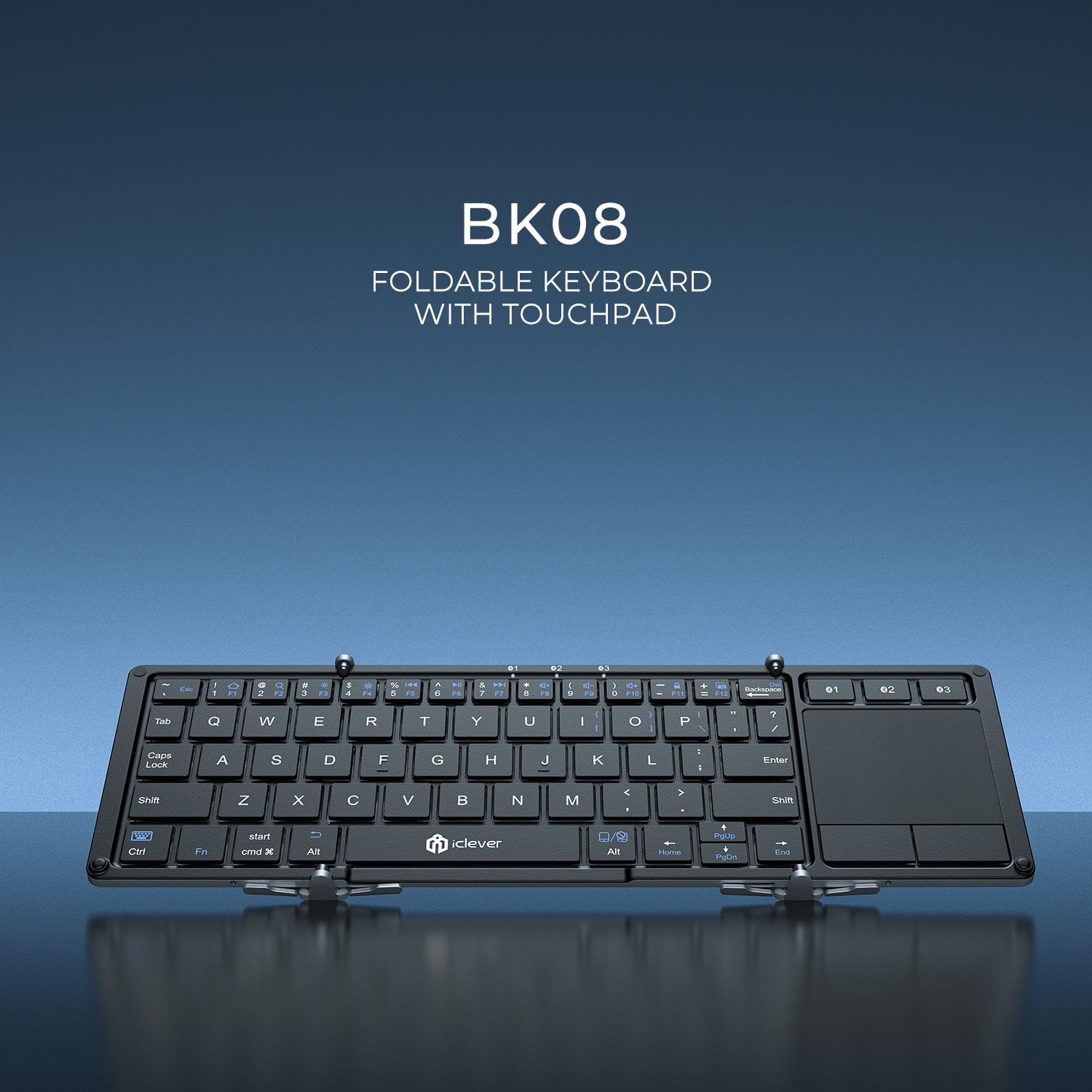
The keyboard can be paired with several devices and switch between them. To pair, just press the combo for your system:
fn + q→ iOSfn + w→ Windowsfn + e→ Androidfn + r→ Mac
Then fn + Tab — the keyboard jumps into Bluetooth search mode and you simply pair it in the phone’s settings. Done. The touchpad works right away, so you have a keyboard and a mouse in a single piece of plastic the size of a wallet. In practice this is incredibly convenient. And when you use the hub (see section 2), you connect the keyboard to it with its USB‑C cable as well — it charges while you type over Bluetooth, so it won’t die on you mid-work.
4. Connecting: Desktop vs. Mirror
When you plug the USB‑C cable into the monitor, GrapheneOS asks whether you want Desktop or Mirror mode.
- Mirror just mirrors the phone — fine for video.
- Desktop launches that nice, usable window manager.
For serious work, definitely Desktop.
Audio: if the monitor has speakers, sound goes over HDMI; if not, the phone keeps playing it — or you connect Bluetooth headphones.
The icons and fonts were small — here’s how to fix it
The one thing that annoyed me at first: at a higher resolution (around 1920×1280 for me) the icons and text were a bit small and harder to read. Luckily it’s adjustable:
Settings → Accessibility → Display size and text
There you have two sliders:
- Font size — enlarges/shrinks the text,
- Display size — enlarges the icons and the whole UI.
Bump Display size up a notch or two and it’s comfortable right away. (You’ll also find it by searching “Display size” directly in Settings.)
5. Apps: everything that runs on the phone runs on the desktop too
And that’s the best news. Every Android app you have on your phone also works in the desktop interface — just in a bigger window. No “desktop versions”, no compromises.
For me it was mainly about the terminal — I need SSH and local Claude instances to work everywhere.
Termux + Ubuntu
I installed Termux (from Zapstore, not the Play Store — it’s unmaintained there). Into Termux I pulled the latest Ubuntu distribution (ARM64) via proot-distro:
pkg update && pkg upgrade
pkg install proot-distro
proot-distro install ubuntu
proot-distro login ubuntu
Important — give Termux unrestricted battery. So that Termux runs reliably in the background and the system doesn’t suspend your SSH connections or longer-running processes (local Claude instances, agents, tmux), set the app to Unrestricted battery usage: Settings → Apps → Termux → App battery usage → Unrestricted. Without it, the system aggressively “sleeps” Termux after a while and the processes inside it drop.
In Ubuntu I created a new user (I don’t want to work as root):
apt update && apt install sudo
adduser wilder
usermod -aG sudo wilder
su - wilder
tmux: terminal windows under control
Inside it I run tmux and comfortably create and switch terminal windows. I have it configured so the prefix is the backtick (`) instead of the annoying Ctrl+b — a new window is thus ` then c, switching via Shift+arrows or Alt+number. A double backtick types a literal `.
I put my full ~/.tmux.conf (backtick prefix, vim-style pane navigation and resizing, window and session management, copy-mode, status bar) on the web — download/view it here: opportunist.global/files/tmux.conf.
I also created new SSH keys, so I manage all my servers from the phone just as comfortably as I used to from a laptop. And if you’d rather use a dedicated, modern SSH client instead of the bare terminal, Termius (from Google Play) is an excellent one.
AI: local models and the cloud
In each window I run either a local Claude instance or a local hermes agent wired to Ollama Cloud. And for more sensitive operations I use the most capable open-weight model — GLM 5.2 — via the E2EE interface Venice.AI, where the model runs inside a hardware enclave (TEE) and encryption is end-to-end. Sensitive things never leave the encrypted channel.
And when you want fully offline AI right on the phone — no internet, no account, nothing leaving the device — my recommended choice is Off Grid: in my view the best offline AI app on Android with open-weight models. You download a model (Qwen 3, Llama 3.2, Gemma 3, Phi‑4 or any GGUF) and it runs entirely natively on the phone — chat, vision, and image generation. No data leaves the phone. (Open-source; and in desktop mode you have it in a full window like on a computer.)
6. The last reason for a laptop fell: crypto
This was long my only truly solid excuse. I always had to connect my hardware Trezor to a “computer”, and the phone never felt right for it. That’s no longer true.
I got the new Trezor Safe 7, which has Bluetooth. I paired it with the phone, launched the Android Trezor Suite app, and have secure access to my crypto wallet straight from the phone. No cable, no laptop.
And the cherry on top: my favorite mobile Monero wallet Cake Wallet (which, by the way, now also supports Bitcoin on-chain and Bitcoin Lightning) supports a hardware Trezor. I linked it with the Trezor Safe 7 and it works great.
So crypto is covered too — without a laptop.
7. Advantages a laptop doesn’t have
It’s not just a “laptop replacement”. In a few ways it’s directly better:
- You work right on your phone. That means you read and reply to SMS, Signal, WhatsApp or any messages straight from the keyboard — even if that app has no desktop mode at all. Notifications come to the very device you’re working on. On a laptop you’d have to reach for the phone every time; here everything is in one place.
- A genuinely secure “desktop”. GrapheneOS sandboxes each app separately — and does it harder than regular Android (hardened SELinux, seccomp, a hardened kernel). The Vanadium browser additionally enables strict site isolation — each page/window runs in its own sandbox, comparable to desktop Chromium. On a regular Linux/Windows/Mac desktop, apps mostly run with your user’s full privileges, so you don’t get this granular isolation. Your “desktop” is thus paradoxically more secure than most real desktops.
8. Downsides (and how to get around them)
I won’t lie — there are a few things to watch out for. The good news is you solve each one with a single setting or a single piece of hardware:
-
Battery. When the phone is connected via USB‑C → HDMI to a monitor, driving the external display eats the battery quite a bit — realistically count on a couple of hours of work, then you need to charge. And since the phone has only one USB‑C port, taken by the monitor cable, you can’t “just” charge it on the side.
Solution: a USB‑C hub with HDMI and passthrough charging (Power Delivery). Instead of a bare cable, you plug a small hub into the phone that has both an HDMI output (to the monitor) and a USB‑C PD port (where you put the charger). The phone drives the image to the monitor and charges at the same time — you easily last all day. The specific hub (AXAGON HMC‑5G2), cable and charger — including the wiring diagram — are in section 2. For longer sessions, a hub is always a better choice than a bare cable.
To give you an idea how little it actually draws: this whole article — configs and all — was written on a single charge.
-
The screen turns off after a few seconds. By default the phone blanks the display very quickly (after ~30 seconds of inactivity), which is unbearable when working on a monitor. Extend it: Settings → Display → Screen timeout and set 30 minutes. Right away it’s perfectly usable.
-
Text and icon size. At a higher resolution everything can be a bit tiny and harder to read. The setting I mentioned above fixes it — Settings → Accessibility → Display size and text → bump Display size and Font size up.
And honestly — when it’s not enough: this isn’t a machine for everything. For multiple external monitors at once, heavy video editing, 3D/GPU work or local virtual machines, a laptop (or desktop) will still be better. But for everyday work — terminal, writing, web, communication, crypto — the phone has replaced the laptop for me entirely.
9. Summary: Laptop-free mode
No laptop. Instead:
- A GrapheneOS phone with Android 17 (Pixel 8 or newer — for video output over USB‑C),
- connecting to a monitor — either a plain USB‑C → HDMI cable (simple, but you don’t charge the phone), or a USB‑C hub with HDMI + 100 W PD (AXAGON HMC‑5G2) and an HDMI–HDMI cable, when you want to charge while working,
- a 100 W charger (Arsmel VisaGo) — if you go the hub route,
- a small folding keyboard with a touchpad (iClever BK08),
- a Trezor Safe 7 for crypto.
You don’t carry an external monitor — you use whatever’s at hand. The whole “computer” fits in your pocket. Specifically, into my Pixel running the latest GrapheneOS.
In my last article I was still packing a laptop. Today I leave it at home.
And now the best part: I wrote this whole article on a phone. On a Pixel 10 Pro Fold running the latest GrapheneOS, connected to an external monitor, with an external keyboard. No laptop. 📱🫳